
Direct answer
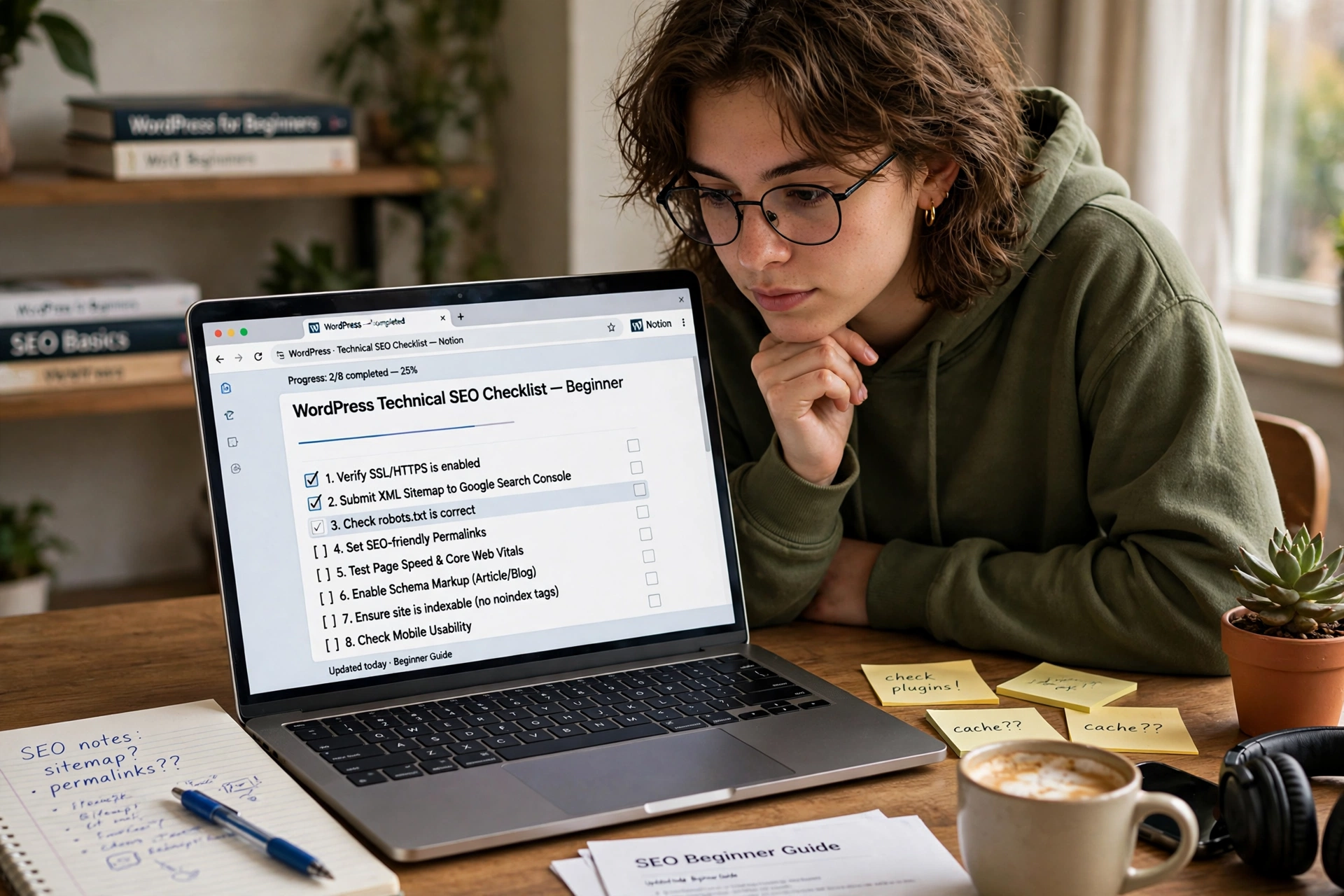
Technical SEO for a WordPress beginner means checking that Google can find, read and rank your pages. Work through this checklist in order: make the site visible to search engines, use HTTPS and clean permalinks, submit your sitemap, fix indexing problems, speed the site up, check it on mobile, and add schema markup. Most checks take under ten minutes.
What is technical SEO, in one minute?
Technical SEO is the work that makes a website easy for Google to find, crawl, render, index and understand. Content SEO decides what your pages say. Technical SEO makes sure search engines can actually reach and read them. It covers crawl access, indexing, site speed, mobile usability, site structure, HTTPS and structured data.
Google uses three steps on every website: crawl (discover the page), index (store it in the database), and rank (show it in results). If any step breaks, the page cannot rank, no matter how good the writing is. That is why technical SEO is the foundation everything else sits on.
WordPress powers over 43 percent of all websites, according to the seoguru guide, which means the competitive floor is crowded with sites running identical default installs. The sites that win are the ones whose technical setup is actually finished. This checklist is that setup, in the order that matters most.
The technical SEO checklist
Work through the list top to bottom. The first section is a one-time setup. The rest is a check you repeat after any big change to the site.
| Check | What to do | Where in WordPress |
|---|---|---|
| 1 | Make sure search engines can see the site | Settings, then Reading: “Discourage search engines from indexing this site” must be unticked |
| 2 | Use HTTPS everywhere | Hosting control panel: free SSL certificate on, all http addresses redirect to https |
| 3 | Set one canonical domain | Settings, then General: pick https with www or without www, and redirect the other |
| 4 | Set permalinks to Post name | Settings, then Permalinks: choose Post name, keep slugs short and descriptive |
| 5 | Install one SEO plugin and run its setup | Plugins, then Add New: Yoast SEO or Rank Math, never both at once |
| 6 | Generate the XML sitemap | Your SEO plugin creates it: check it loads at yoursite.co.uk/sitemap_index.xml |
| 7 | Check robots.txt is not blocking the site | Visit yoursite.co.uk/robots.txt: no blanket Disallow for the whole site |
| 8 | Verify the site in Google Search Console | Search Console: add the property, verify it, submit the sitemap |
| 9 | Check the Pages report for indexing problems | Search Console, then Pages: read why any page is excluded and fix it |
| 10 | Fix duplicate pages with canonical tags | SEO plugin: one canonical address per page, duplicates merged or redirected |
| 11 | Add internal links so no page is orphaned | Every page needs at least one link from another page on the site |
| 12 | Set up 301 redirects for moved or deleted pages | SEO plugin or redirect plugin: old address points to the closest live page |
| 13 | Compress images and write alt text | Before upload: resize to display width, compress, descriptive file name and alt text |
| 14 | Turn on page caching | LiteSpeed Cache if your host runs LiteSpeed, otherwise WP Rocket or W3 Total Cache |
| 15 | Check the site on a phone | Search Console mobile usability report: text readable, buttons tappable, no sideways scroll |
| 16 | Add schema markup to key pages | SEO plugin: Article schema on posts, LocalBusiness schema on a local business site |
How do I check if Google can find my site?
Start with the visibility setting. Go to Settings, then Reading, and look for the box labelled “Discourage search engines from indexing this site”. It must be unticked. Sites launched from a staging copy frequently ship with this box ticked, and nothing else in this list matters while it is on.
Next, check robots.txt. Visit yoursite.co.uk/robots.txt in your browser. It should not contain a blanket rule that blocks the whole site. A single wrong line here can hide every page from Google.
Then check the sitemap. Your SEO plugin creates an XML sitemap that lists every page for Google. Open it and confirm it loads and lists your pages. If a page is missing from the sitemap, Google may never find it. Submit the sitemap in Google Search Console so Google knows where it is, and check the Pages report a week later to see what was actually indexed.
How do I fix pages Google will not index?
Open Google Search Console and go to the Pages report under Indexing. It shows exactly how many of your pages are indexed, which are excluded, and why. Read the reasons before you act, because each reason has a different fix.
A page marked “crawled, currently not indexed” usually needs better content or better internal links pointing to it. A page blocked by robots.txt needs the robots rule fixed. A duplicate page needs a canonical tag pointing to the version you want Google to show, or a merge into the stronger page with a 301 redirect from the old address.
An orphan page, one with no internal links pointing to it, is easy to miss and easy to fix. Read our guide on how to fix orphan pages on WordPress to find them with a free crawl and reconnect them with two or three contextual links. A page that sits in your sitemap but has no links is invisible to visitors even when Google knows it exists.
How do I make my WordPress site faster?
Speed is a technical SEO job, and it is mostly about weight. Images are usually the heaviest files on a page. Before you upload a photo, resize it to the width it will actually be shown at and compress it. Give the file a descriptive name with hyphens and write one sentence of alt text.
Turn on page caching. A cache plugin serves your pages as pre-generated files instead of rebuilding them on every visit, which cuts server response time sharply. If your host runs LiteSpeed, use LiteSpeed Cache. Keep your plugin count low and delete any plugin you do not use, because each one adds code that can slow the site down.
Google measures speed with three Core Web Vitals. Only 55.9 percent of all tracked origins pass all three at once, according to Google CrUX data quoted in the seoguru guide, so a site that passes them is ahead of most of the web.
| Metric | What it measures | Good | Needs improvement | Poor |
|---|---|---|---|---|
| Largest Contentful Paint (LCP) | How fast the main content loads | 2.5 seconds or less | Up to 4 seconds | Over 4 seconds |
| Interaction to Next Paint (INP) | How fast the page responds to a click or tap | 200 ms or less | Up to 500 ms | Over 500 ms |
| Cumulative Layout Shift (CLS) | How much the page jumps around while loading | 0.1 or less | Up to 0.25 | Over 0.25 |
Check these in PageSpeed Insights for one URL at a time, and in the Core Web Vitals report in Search Console for the whole site. Fix the worst metric first, one change at a time, and retest before you change anything else.
What about mobile, HTTPS and schema?
Google indexes the mobile version of your site first, so check every change on a phone, not just on a desktop. Text must be readable without zooming, buttons must be tappable without hitting the wrong one, and the page must not scroll sideways. The mobile usability report in Search Console lists the pages that fail.
HTTPS is the padlock in the browser address bar. Google confirmed back in 2014 that HTTPS is a ranking signal, according to the exactmetrics guide, and today it is essentially a baseline requirement. Most hosts offer a free SSL certificate. If your site still loads on http, switch it on and redirect all old http addresses to https.
Schema markup is code that describes your content to machines. It tells Google that a page is an article, a product, a recipe, or a local business. Your SEO plugin adds basic schema automatically. For a local business, LocalBusiness schema with your name, address, phone number and opening hours is the one that matters most.
What are the most common technical problems?
Most WordPress sites fail on the same short list. Check for these first when something looks wrong.
| Problem | How you spot it | The fix |
|---|---|---|
| Search engines blocked | Settings, then Reading: the discourage box is ticked | Untick it, then request indexing in Search Console |
| Sitemap missing or dirty | Sitemap lists noindex URLs, redirects or error pages | Let your SEO plugin rebuild it, remove the bad URLs |
| Duplicate pages | Same content at two addresses, both indexed | Canonical tag to one version, or merge with a 301 redirect |
| Slow pages | PageSpeed Insights shows LCP over 4 seconds | Caching on, images compressed, heavy plugins removed |
| Orphan pages | Page in the sitemap with no internal links | Add two or three contextual links from related posts |
| Broken links and redirect chains | Crawl shows 404s or chains of redirects | Fix the link, or point the redirect straight to the live page |
| No schema | Search results show plain blue links with no extra detail | Turn on schema in your SEO plugin for articles and business pages |
A good website structure prevents half of these problems before they start. Read our guide to website structure for SEO to plan a shallow hierarchy with a handful of categories, so every page has a clear place and a clear path from the homepage.
How often should I run this checklist?
Run the full checklist when the site launches, and again after any big change: a new theme, a redesign, a migration, or a large batch of new pages. After that, a ten minute check once a month is enough: visibility setting, sitemap loads, Pages report in Search Console, Core Web Vitals report, and one speed test on your most important page.
Technical SEO is not a one-time job. WordPress, themes and plugins update constantly, and each update can quietly break something. A short monthly check catches the break while it is still small.
Frequently asked questions
What is technical SEO in simple terms?
It is the work that makes your website easy for Google to find, crawl, index and rank. It covers crawl access, site speed, mobile usability, HTTPS, site structure and schema markup. Content SEO decides what your pages say. Technical SEO makes sure search engines can reach and read them.
Do I need a developer for technical SEO?
No, not for this checklist. Every check here is a setting, a plugin option, or a report you can read yourself. A developer is only needed for custom code problems, such as a theme that loads very slowly or a server that responds slowly even with caching on.
How long does technical SEO take to show results?
Indexing fixes can show up within days. Ranking changes take longer, usually weeks to a few months, because Google needs to recrawl your pages and retest them against other results. Check Search Console monthly and judge by trends, not by daily changes.
Which SEO plugin should a beginner use?
Yoast SEO or Rank Math. Both are free at the basic level and cover titles, meta descriptions, sitemaps and schema. Pick one and use it properly. Running two SEO plugins at once causes more problems than either one solves.
What is the single most important technical SEO check?
The visibility setting. If “Discourage search engines from indexing this site” is ticked, Google ignores your entire site and nothing else matters. Check it first, every time.
Does technical SEO matter for a small site?
Yes, more than for a large one. A large site can survive a few broken pages. A small site with twenty pages cannot afford to have five of them invisible to Google. The checklist is short, and finishing it puts a small site ahead of most of its competitors.
Conclusion
Technical SEO for a WordPress beginner is a short list of checks in the right order: visibility, HTTPS, permalinks, one SEO plugin, a clean sitemap, robots.txt, Search Console, indexing, canonicals, internal links, redirects, images, caching, mobile and schema. Most checks take under ten minutes, and the whole list fits into one afternoon. Run it at launch, repeat it after big changes, and check it monthly. That is how a small WordPress site makes sure Google can find every page it publishes.