
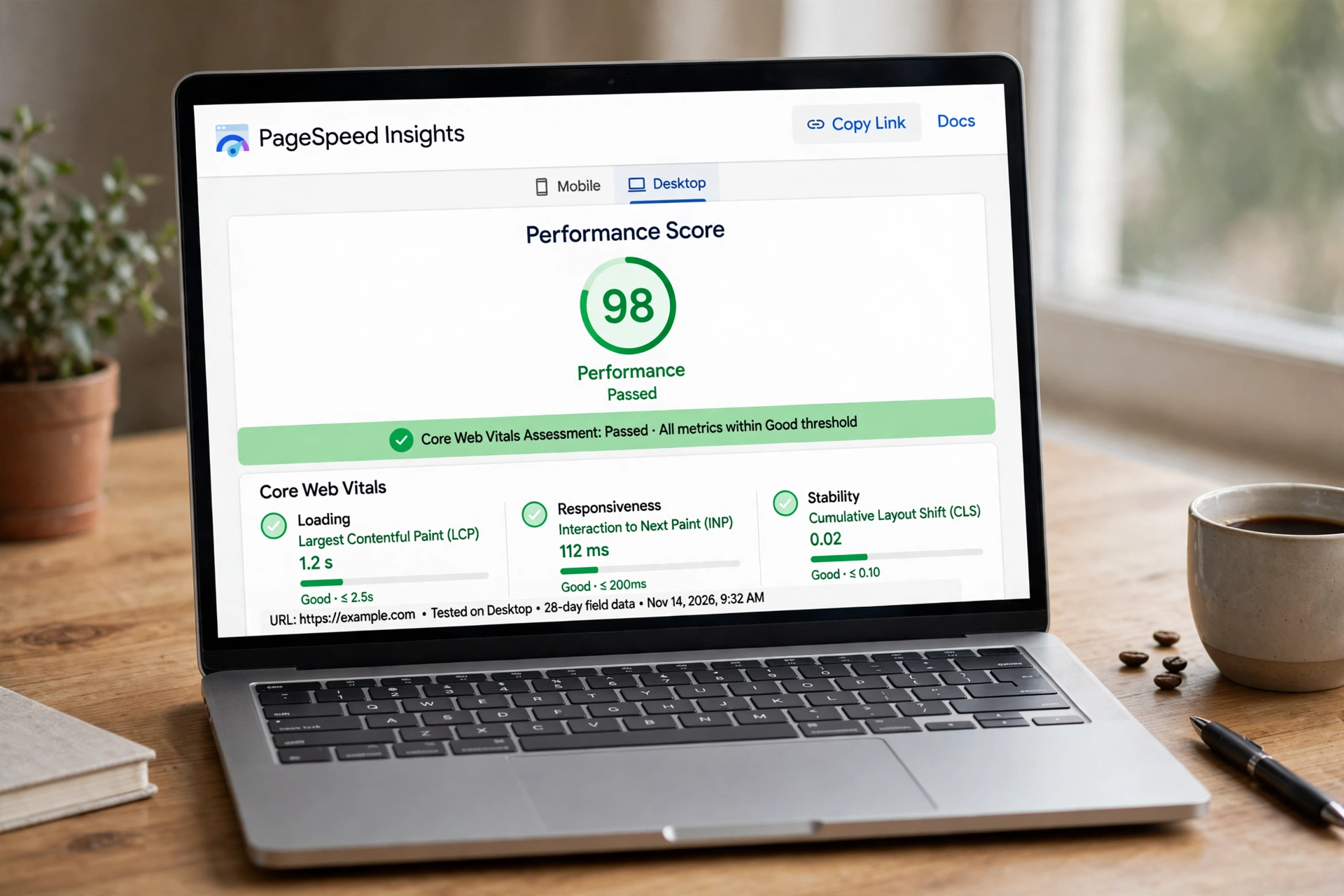
Direct answer
To improve Core Web Vitals on WordPress, fix each metric. Speed up the paint by improving caching and your hero image. Cut interaction delays by reducing JavaScript and extra plugins. Fix layout shift by giving images and embeds fixed space. Measure with PageSpeed Insights, change one thing at a time, and allow weeks for field data to catch up.
Intro
You have probably seen the message in Google Search Console: some of your pages need improvement, or some of them are poor. The report behind that message is called Core Web Vitals, and it measures how your pages feel to real visitors. Do they load fast enough, do they respond when tapped, and do they stay still while they load, or does the text jump around the screen?
This guide explains the three metrics in plain English and shows you how to fix each one on WordPress, metric by metric. It is written for a site like this one, running WordPress with LiteSpeed caching, and it avoids the usual advice to install a pile of new plugins. Most fixes here need one change at a time, not ten.
What are Core Web Vitals in plain English?
Core Web Vitals are three measurements Google uses to judge how a page feels to use. They do not measure what the page says. They measure how it behaves while it loads and while a visitor uses it. The three metrics are largest contentful paint, interaction to next paint and cumulative layout shift, usually shortened to LCP, INP and CLS.
Largest contentful paint, or LCP, is about loading. It measures how long it takes for the biggest visible piece of content on the page to appear, usually the hero image or the main heading. If the hero image is slow, the LCP is slow, even if the rest of the page loaded quickly.
Interaction to next paint, or INP, is about responsiveness. It measures how long it takes for the page to react after a visitor taps a button, opens a menu or types in a form. A page with too much JavaScript feels sluggish, because the browser is busy running scripts when it should be responding to the visitor.
Cumulative layout shift, or CLS, is about stability. It measures how much the page moves around while it loads. If a banner loads late and pushes the text down, or an image appears and shoves a paragraph aside, the visitor has to chase the content with their eyes, and sometimes they tap the wrong thing. A stable page stays still.
Together, the three metrics answer one question: does this page feel fast, responsive and steady to a real person on a real phone?
What counts as a good score?
Google sets a threshold for each metric, with three bands: good, needs improvement and poor. The official thresholds, reported by the schoolswp and krishaweb guides from Google’s web.dev documentation, are set out below.
| Metric | What it measures | Good | Poor |
|---|---|---|---|
| LCP | How fast the biggest content appears | 2.5 seconds or less | Over 4 seconds |
| INP | How fast the page reacts to a tap or click | 200 ms or less | Over 500 ms |
| CLS | How much the page moves while loading | 0.1 or less | Over 0.25 |
A page needs to pass all three to count as good. A page that loads fast but jumps around will still fail. A page that is stable but slow to respond will still fail. That is why this guide fixes one metric at a time, so you can see which one is holding a page back.
Google does not judge a page on one fast visit. It judges each metric at the 75th percentile of real visitor data, according to the krishaweb and sitehale guides. That means three quarters of real visits must be good for the page to count as good. A page that is fast on a desktop with a strong connection but slow on a phone with a weak signal will be judged on the phone experience, because that is what most visitors actually have.
How do you measure Core Web Vitals?
Start with PageSpeed Insights, Google’s free tool. Enter a page address and it gives you a score for mobile and for desktop, with the three metrics and a list of suggested fixes. Run it on your homepage and on your most important service page first, because those are the pages that matter most.
PageSpeed Insights shows two kinds of data, and the difference matters. Field data comes from real visitors, collected over the past 28 days, and it is what Google uses to judge your site. Lab data comes from a single test run in Google’s lab, and it is useful for checking whether a fix worked right now. If the lab score improves but the field data has not moved yet, that is normal. The field data is a rolling 28 day average, according to the wpxpart and sitehale guides, so fixes take weeks to show up in Search Console.
Google Search Console has its own Core Web Vitals report, under Experience in the left hand menu. It groups your pages into good, needs improvement and poor, for mobile and for desktop separately. Use it to find which pages need work, then use PageSpeed Insights on one page at a time to find the cause.
Do not test once and stop. Test the same page before and after each change, and write down the scores. If you change five things at once, you will never know which one helped and which one made things worse.
How do you fix LCP?
LCP is usually the metric that fails first on a WordPress site, and it is usually caused by the same few things: a slow server response, a large hero image, or a page that loads too much before the main content appears.
Start with caching. A caching plugin stores a ready made copy of each page, so the server does not have to build it from scratch on every visit. This site runs LiteSpeed Cache, which is a good fit for a LiteSpeed server, and it should be switched on with page caching enabled. If your host offers server level caching, use that as well, but do not run two page caching plugins at the same time.
Next, fix the hero image. The largest contentful paint is often the hero image, so that one image matters more than every other image on the page combined. Compress it, resize it to the width it is actually shown at, and use a modern format such as WebP where your tools support it. Read our guide on how to optimise images for SEO for the full workflow, including formats, compression and file naming, because the same steps that help your images rank also help your LCP score.
Then look at what loads before the hero image. A large header, a slider, a video that starts automatically or a font that takes a second to arrive can all delay the main content. Remove the slider if you can. A single clear hero image with one short heading loads faster and converts better than a rotating banner.
The scale of the LCP problem is worth knowing. A 2023 Chrome team analysis, reported by the krishaweb guide, found that 40 percent of sites in the Chrome UX Report did not meet the good LCP threshold. If your site is in that group, you are not alone, and the fixes above are the ones that move most sites out of it.
WordPress itself helps here too. WordPress 6.3 and later skips lazy loading on the first content image and adds fetchpriority high to it, according to the sitehale guide. That means the first image on the page loads early, as it should, instead of waiting. If your site runs an older version of WordPress, updating it is one of the simplest LCP wins available, and it is free.
How do you fix INP?
INP fails when the browser is too busy to respond to the visitor. The usual cause on WordPress is JavaScript: too much of it, loaded too early, from too many plugins. Every plugin that adds a script to the front of your site makes the browser work harder before it can react to a tap.
Start by counting your plugins. Deactivate the ones you do not use, and delete the ones you have deactivated. Then look at the ones that remain and ask what each one adds to the page. A chat widget, a social feed, a popup, a slider and an analytics script can each add JavaScript, and together they can push a page over the INP threshold.
Next, defer the scripts that do not need to run straight away. Deferring tells the browser to load the page content first and run the script afterwards. LiteSpeed Cache has settings for this, and most caching plugins do too. Be careful with this setting, because deferring the wrong script can break a menu or a form. Change one setting, test the page, and only then move on to the next.
Then check your theme. A heavy theme with built in sliders, animations and page builders adds JavaScript on every page, even the ones that do not use those features. A light theme, or a theme with those features switched off, will often fix an INP problem that no amount of plugin tuning can solve.
Finally, keep the number of requests down. Each script, font and stylesheet is a separate request the browser has to make. Combining files where your caching plugin offers it, and removing fonts you do not use, will both help. The rule is simple: less JavaScript on the page means a faster response to the visitor.
How do you fix CLS?
CLS is the most visible of the three metrics, because the visitor can see the page jumping. It is also the most fixable, because the causes are usually simple: images without dimensions, adverts or embeds that appear late, and fonts that swap after the page has loaded.
Start with images. Every image on a page should have a width and height set, so the browser can reserve the right amount of space before the image arrives. WordPress adds dimensions automatically when you upload an image through the media library, but images added by a page builder, a theme or a plugin sometimes do not. Check the worst pages in Search Console and look for images without dimensions first.
Next, reserve space for anything that loads late. An embedded video, a map, a social feed or an advert should sit inside a container with a fixed height, so the page does not move when the embed arrives. If you run adverts, this is often the biggest single cause of layout shift, and reserving space for the advert slot is the fix.
Then look at fonts. A page that loads with a fallback font and then swaps to the real font will shift the text, sometimes by a whole line. Using a system font, or loading the font early with a preload, will reduce the shift. If your theme offers a font display setting, choose one that keeps the text stable.
The table below summarises the three fixes and the first thing to check for each one.
| Metric | First thing to check | Most common fix |
|---|---|---|
| LCP | Hero image size and caching | Compress the hero image, enable page caching |
| INP | Number of plugins and scripts | Remove unused plugins, defer non essential scripts |
| CLS | Images without dimensions | Set width and height, reserve space for embeds |
What is the one change at a time rule?
The one change at a time rule is the most important habit in this guide. Change one thing, test the page in PageSpeed Insights, write down the lab score, and only then change the next thing. If the score improves, keep the change. If it gets worse, undo it and try something else.
This matters because Core Web Vitals fixes interact with each other. Deferring a script can improve INP and worsen LCP. Removing a plugin can improve all three, or it can break a feature you need. Changing five things at once leaves you guessing, and guessing wastes more time than testing.
It also matters because the field data takes weeks to catch up. A lab score that improves today is a good sign, but the Search Console report will not show it until the 28 day rolling window has moved on. That is normal, and it is not a reason to keep changing things. Make the change, check the lab score, and wait.
What do you do when mobile still fails?
Mobile is where most sites fail, because a phone has a slower connection and a weaker processor than a desktop, and Google judges the mobile score first. If your desktop scores are good and your mobile scores are poor, the problem is almost always the theme, the images or the scripts, not the content.
Test the same page on mobile and on desktop in PageSpeed Insights and compare the two lists of suggestions. If the mobile list is much longer, look at what loads only on mobile, such as a mobile menu script, a sticky banner or a large image that is the same file as the desktop version. A hero image that is 2,000 pixels wide is wasted on a phone screen 400 pixels wide, and it costs the visitor time on every load.
If the theme itself is the problem, say so plainly. A theme that adds sliders, animations and builders to every page will not pass Core Web Vitals on mobile, no matter how much you tune the plugins around it. In that case the fix is a lighter theme, and it is better to know that early than to spend months tuning a theme that cannot pass.
For the full starting setup, read our guide to SEO for WordPress beginners. It covers the plugin setup, the permalink settings and the Search Console connection that sit underneath every metric in this guide. Fix the metrics one at a time, in the order LCP, INP and CLS, and give each fix time to show in the field data before you judge it.
Frequently asked questions
What are Core Web Vitals?
They are three measurements Google uses to judge how a page feels to use: how fast the biggest content loads (LCP), how fast the page reacts to a tap (INP), and how much the page moves while loading (CLS).
What is a good Core Web Vitals score?
LCP of 2.5 seconds or less, INP of 200 ms or less, and CLS of 0.1 or less. A page needs to pass all three to count as good, judged at the 75th percentile of real visitor data.
How long does it take for a fix to show in Search Console?
Weeks. The field data is a rolling 28 day average, so a fix made today will take time to appear in the Core Web Vitals report, even if the lab score in PageSpeed Insights improves straight away.
Do I need a new plugin to fix Core Web Vitals?
Usually not. Caching, image compression and removing unused plugins fix most problems. Adding more plugins to fix a speed problem often makes it worse.
Why does my site pass on desktop but fail on mobile?
A phone has a slower connection and a weaker processor, and Google judges the mobile score first. The usual causes are a large hero image, a heavy theme and too much JavaScript.
Conclusion
Core Web Vitals come down to three plain questions: does the page load fast, does it respond when tapped, and does it stay still? Fix LCP with caching and a compressed hero image. Fix INP by cutting JavaScript and removing plugins you do not use. Fix CLS by giving images and embeds fixed space. Measure with PageSpeed Insights, change one thing at a time, and give the field data weeks to catch up. A site that passes all three feels better to every visitor, and that is the point of the metrics in the first place.