
Direct answer
Optimise your WordPress permalinks for SEO by choosing the Post name structure in Settings, then Permalinks, and writing a short descriptive slug for every post before you publish. Keep published URLs stable. If you must change one, set up a 301 redirect from the old address first, then check the new URL loads and the old one redirects.
What is a permalink and why does it matter?
A permalink is the permanent URL for a post, page, category, tag or archive on your WordPress site, per hostney.com. The word permanent is the point. Once you publish a page, that address is the one other sites link to, the one people bookmark, and the one Google stores in its index.
A good permalink tells a reader what the page covers before they open it. Compare yoursite.co.uk/how-to-fix-404-errors-on-wordpress/ with yoursite.co.uk/?p=3290. The first one says exactly what the page is about. The second says nothing at all. Google recommends simple, descriptive URLs with readable words separated by hyphens, per serveravatar.com, citing Google Search Central, and per hostney.com.
Keep the honest limit in view. Permalinks alone do not determine rankings. Content, authority and user signals dominate, per hostney.com. What a permalink does affect is readability in search results, the small keyword signal in the address, and stability. Stability is the biggest SEO factor of the address itself, per hostney.com. A URL that never changes keeps every link pointing at it working. That is why the first rule of this guide is simple: pick the right structure once, then leave it alone.
Step 1: Pick the right structure
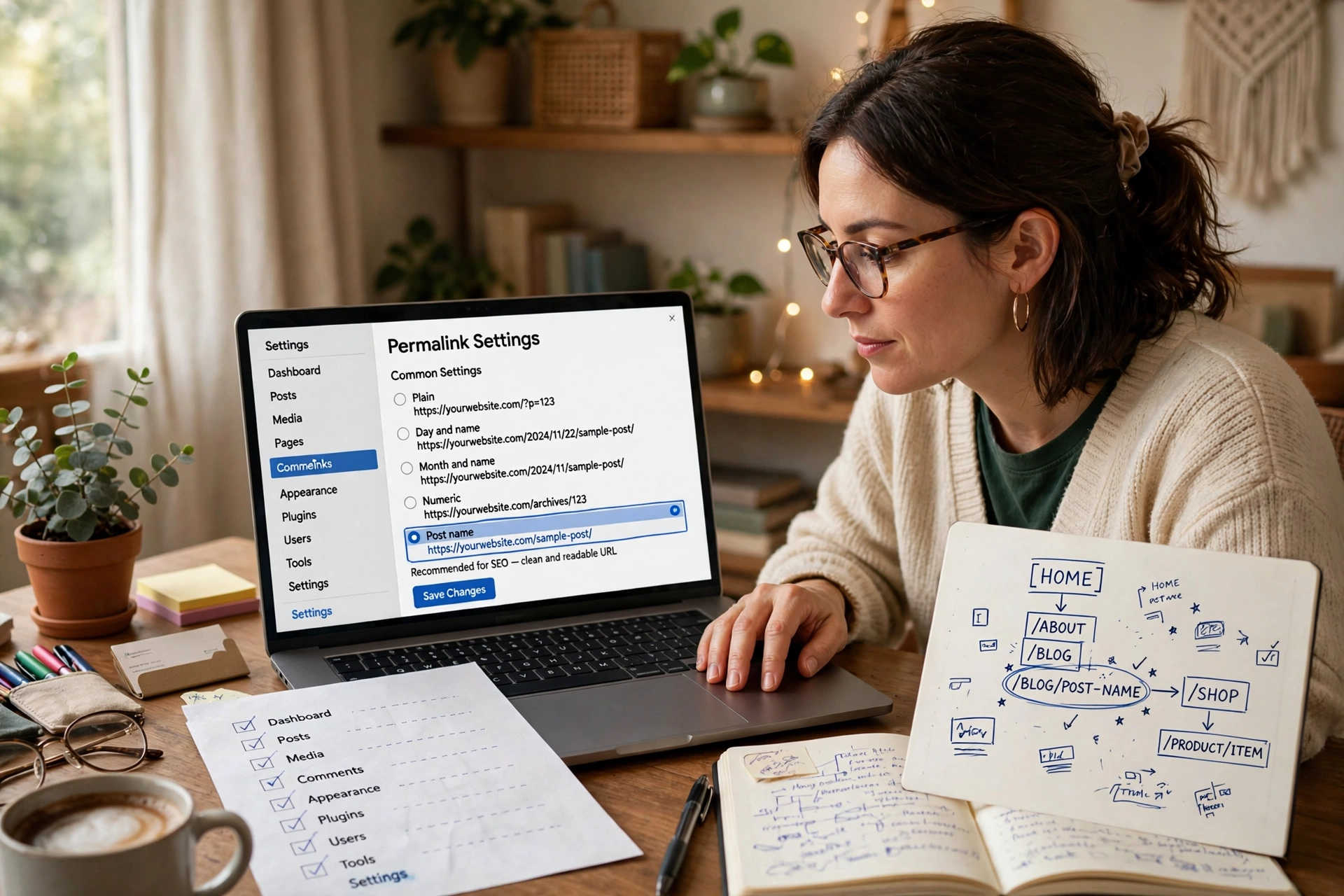
WordPress ships with six built-in permalink structures, per hostney.com. You choose one in Settings, then Permalinks, and WordPress builds every URL from that template plus the individual post slug. Here is what each one does.
| Structure | Example URL | Best for | SEO verdict |
|---|---|---|---|
| Plain | yoursite.co.uk/?p=123 | Nothing public | Worst, no words at all |
| Day and name | yoursite.co.uk/2026/11/23/sample-post/ | News sites only | Poor, long and dated |
| Month and name | yoursite.co.uk/2026/11/sample-post/ | News sites only | Poor, long and dated |
| Numeric | yoursite.co.uk/archives/123 | Nothing public | Worst, no words at all |
| Post name | yoursite.co.uk/sample-post/ | Almost every site | Best, short and descriptive |
| Custom | yoursite.co.uk/blog/sample-post/ | Sites that need a fixed prefix | Good, if kept simple |
Post name is the recommended default for most sites, per serveravatar.com, hostney.com, wphow.co and blog.hubspot.com. It gives short URLs, the target keyword in the address, no date and no ID. Every major WordPress SEO plugin recommends it, per hostney.com.
Date based structures suit news sites only. For an evergreen guide a date in the URL becomes a problem two years later, when the address still says 2024 and the content looks old, per hostney.com. If you want the date visible to readers, put it in the page content or the meta description, not the URL, per hostney.com.
Plain and Numeric are the worst options. Query string URLs are harder for search engines to parse and nearly impossible for humans to read, per hostney.com. Plain is the WordPress default before you touch the settings. Change it to Post name immediately after installing WordPress, per hostney.com.
Step 2: Set Post name in Settings
If your site is new, this takes two minutes. Do it before you publish anything, because changing the structure later means redirecting every URL you have shared.
- Log in to your WordPress dashboard.
- Go to Settings, then Permalinks.
- Under Common Settings, select Post name.
- Click Save Changes.
- Open three or four posts and check each one loads at its new address.
That is the whole job for a new site. WordPress replaces the post name placeholder with each post slug, per serveravatar.com, and every new post gets a clean address automatically.
If your site is already live with another structure, do not save a new structure yet. Read Step 5 first. Changing the structure on a site that has traffic will break every existing link unless you set up redirects first, per hostney.com.
Step 3: Write short descriptive slugs
The slug is the last part of the URL, the bit after the final slash. WordPress builds it from your post title automatically, but the automatic version is usually too long. A title of “How to Optimise WordPress Permalinks for SEO” becomes the slug “how-to-optimise-wordpress-permalinks-for-seo”, which is fine. A longer title becomes a slug nobody can remember or share. Edit every slug before you publish.
Follow five rules. First, include words that describe the actual topic, per serveravatar.com. Second, use hyphens between words, per serveravatar.com. Google treats hyphens as word separators, and John Mueller from Google suggests using hyphens instead of underscores, per wphow.co. Third, keep lowercase consistent, per serveravatar.com. Fourth, avoid repeating keywords, per serveravatar.com. Fifth, remove unnecessary dates from evergreen slugs before publication, per serveravatar.com. Clarity matters more than making it extremely short.
How short is short enough? Five or six words is plenty, per hostney.com. Top ranking permalinks average 59 characters in length, per blog.hubspot.com. A slug of three to five words is ideal, and nine or more words is too long, per wphow.co. Cut out the small words that add nothing: a, an, the, in, on, for, and, but, per wphow.co. Put the main keyword near the beginning of the slug, per wphow.co.
To edit a slug, open the post in the editor and find the URL or slug control in the editor settings, per serveravatar.com. Finalise the slug before you publish, per serveravatar.com. Editing a live slug creates another URL change to manage, and every change needs a redirect.
Step 4: Should you put the category in the URL?
WordPress lets you build a custom structure with structure tags, such as /%category%/%postname%/, which puts the category in every post URL, per hostney.com. For a small business site, skip it.
The problem is that a category is not fixed. Posts in multiple categories get ambiguous URLs, and moving a post to a new category breaks its URL, per hostney.com. Your category tree will change as the site grows, and every change to a category then becomes a URL change that needs a redirect. That is work you do not need.
The same thinking applies to the /category/ prefix on archive pages. By default, WordPress category URLs look like yoursite.co.uk/category/news/, per hostney.com. The Settings, then Permalinks screen lets you change the word “category” to something else, such as “topics”, but you cannot leave it blank through the admin screen, because WordPress requires a non-empty value there, per hostney.com. Removing the prefix entirely needs a plugin or custom code, per hostney.com, and it creates a real risk: if a category slug matches a page slug, WordPress serves the page first, so the category becomes unreachable at that URL, per hostney.com. Check your category slugs against your page slugs before you switch anything like this on, per hostney.com.
Keep the structure simple: Post name for posts, and let categories do their job in the navigation and the breadcrumb trail instead of in the address. Our guide on how to use categories and tags in WordPress for SEO shows how to keep that structure tidy.
Step 5: Change an existing URL safely
This is where permalinks get dangerous, per hostney.com. Imagine your site has used /2023/05/sample-post/ for three years. Every post has inbound links, social shares and email links. The moment you save a new structure, every old URL returns 404, every backlink now points to a broken page, and Google sees a sudden wave of 404s and drops the affected URLs, per hostney.com.
The fix is a 301 redirect from every old URL to the new URL. A 301 redirect is a permanent redirect that tells search engines the content has moved here, and to transfer the ranking signals to the new URL, per hostney.com. With 301s in place, you keep your rankings and inbound links continue to work, per hostney.com.
Work through the change in this order:
- Back up the website files and database first, per serveravatar.com.
- List every published URL that will change, per serveravatar.com.
- Map each old URL to its new destination, per serveravatar.com.
- Set up the 301 redirects before you save the new structure, per hostney.com.
- Save the new structure in Settings, then Permalinks.
- Test a handful of old URLs and confirm each one redirects to the right new page, per hostney.com.
- Update your internal links so they point straight to the new URLs, per serveravatar.com. Our guide to internal linking for SEO shows how to link hub pages to supporting posts.
- Check that canonical tags identify the intended URLs and that your XML sitemap lists them, per serveravatar.com.
- Inspect representative pages in Google Search Console and watch for indexing errors, per serveravatar.com.
For a structural change where only the prefix changes and the slug at the end stays the same, one rewrite rule usually covers the whole site, per hostney.com. On Apache that rule goes in .htaccess; on Nginx it goes in the server configuration. If individual posts have had their slugs edited over the years, a single rule will not cover all cases, per hostney.com. A redirection plugin lets you set per-URL 301s through the WordPress admin, per hostney.com. Plugin based redirects run in PHP, which is slower than web server rewrite rules, per hostney.com, but for a handful of legacy URLs it is fine, per hostney.com.
Never redirect an old URL to the homepage by default. Each destination should match the content that moved, per serveravatar.com. If a changed URL returns a 404 after the move, read our guide on how to fix 404 errors on WordPress, which covers the full fix routine. And after any change, purge every cache layer, or they will keep serving the old URLs from cache even after the rewrite rules are updated, per hostney.com.
Step 6: Fix permalinks that return 404
Sometimes permalinks break without any settings change at all. The most common symptom is this: the homepage works, the dashboard works, but every individual post URL returns a 404 error. Before you touch any server file, try the simplest fix.
Go to Settings, then Permalinks and click Save Changes without changing anything, per hostney.com. Then test the posts again. What this does is regenerate the rewrite rules, per hostney.com. On Apache that means updating .htaccess, per hostney.com. On Nginx there is no .htaccess file, but WordPress still flushes its internal rewrite cache, per hostney.com.
This fix works after installing a plugin that adds custom post types, after switching themes, after restoring a backup, and after a migration where the rewrite rules did not come across cleanly, per hostney.com. When it does not work, the issue is in the web server configuration, not WordPress, per hostney.com. For Nginx, check the try_files directive, which needs to fall back to /index.php?$args for WordPress permalinks to resolve, per hostney.com. For Apache, check that mod_rewrite is enabled and that .htaccess is readable, per hostney.com.
Other common problems have simple first checks, per serveravatar.com. If new post URLs return 404, re-save the permalink settings and retest. If old URLs return 404, check their redirect mappings. If changes appear inconsistent, clear the browser, plugin and server caches. If redirect loops occur, look for conflicting redirect rules. Nginx does not read .htaccess, so an Apache fix will not resolve an Nginx configuration problem, per serveravatar.com.
Worked example: this site’s own URLs
This site already uses the Post name structure, so its live URLs are a real example of the routine above. Every post address is the domain plus one short descriptive slug, with no date, no category and no ID number. Here are three of them, checked live on 23 Nov 2026.
| URL | Length | Verdict |
|---|---|---|
| /how-to-fix-404-errors-on-wordpress/ | 36 characters, 7 words | Good, short and descriptive |
| /internal-linking-for-seo-small-business-websites/ | 50 characters, 7 words | Good, names the topic and the audience |
| /how-to-optimise-your-wordpress-homepage-for-seo/ | 49 characters, 8 words | Good, descriptive, near the 59 character average |
| /?p=3297 | 7 characters, 0 words | Bad, the old Plain default, says nothing |
| /2023/05/how-to-fix-404-errors-on-wordpress/ | 45 characters, dated | Bad, the date adds nothing and will look stale |
The lesson is that a good slug does not need to be tiny. All three live URLs are 36 to 50 characters, inside the 59 character average for top ranking permalinks, per blog.hubspot.com. What matters is that every word in the address earns its place, the keyword sits near the start, and the address will still make sense in three years time.
How often should you check your permalinks?
A monthly check is enough for most small business sites, with a quick look after any big change.
| Check | How often | What to look at |
|---|---|---|
| New post slugs | Every post, before publishing | Short, descriptive, hyphens, no dates |
| Old URLs after any change | Immediately after the change | Each old URL redirects to the right new page |
| 404 errors in Search Console | Monthly | New 404s that need a redirect or a fix |
| Sitemap entries | Monthly | Sitemap lists the current URLs, not old ones |
| Category and page slug clashes | After adding a category or page | No category slug matches a page slug |
| Full permalink review | After a redesign or migration | Structure, redirects, canonicals and sitemap all agree |
Set a reminder for the same day each month. Ten minutes is enough: open Search Console, check for new 404s, and write down one URL to fix.
Common mistakes to avoid
Changing the structure on an established site without redirects. This is the single biggest mistake, per hostney.com. Always set up 301s first.
Using very long slugs. Five or six words is plenty, per hostney.com. A slug of nine or more words is too long, per wphow.co.
Stuffing keywords into the slug. The title can be long and keyword rich, but the slug should be the short, memorable version of that, per hostney.com. A slug like /cheap-best-wordpress-hosting-reviews-2026/ reads as spam, per hostney.com.
Using uppercase or special characters. URLs should be lowercase, alphanumeric and hyphen separated, per hostney.com. WordPress handles this automatically when it generates slugs from titles, but if you edit slugs manually, stick to lowercase letters and hyphens only, per hostney.com.
Removing dates just to make old content look new. Do not assume a successful browser visit means everything is correct, per serveravatar.com. Verify the destination, the redirect behaviour, the internal links, the canonical URL and the sitemap entry, per serveravatar.com.
Forgetting to flush rewrite rules after code changes. Any plugin or theme that registers custom post types, taxonomies or rewrite rules needs the Save trick in Settings, then Permalinks to activate them, per hostney.com.
Frequently asked questions
What is the best permalink structure for SEO on WordPress?
Post name, which gives addresses like yoursite.co.uk/sample-post/. It is short, descriptive, keyword rich, has no date and no ID, and it is the structure every major WordPress SEO plugin recommends, per hostney.com.
Should I include the category in my WordPress permalinks?
Usually no. A category based structure looks organised, but posts in multiple categories get ambiguous URLs, and moving a post to a new category breaks its URL, per hostney.com. Keep the structure simple and let categories work in the navigation.
Can I change my permalink structure on an established site?
Yes, but only with a plan. Back up first, list every URL that will change, map each old URL to its new destination, set up 301 redirects before you save the new structure, then test the old URLs, per serveravatar.com and hostney.com.
Why do my posts show a 404 error after I change permalinks?
The rewrite rules often need regenerating. Go to Settings, then Permalinks and click Save Changes without changing anything, per hostney.com. If that does not fix it, the problem is in the server configuration, not WordPress, per hostney.com.
Should I remove dates from my WordPress URLs?
Only for a clear editorial or structural reason, with redirects prepared beforehand, per serveravatar.com. Dates suit news sites, per hostney.com. For evergreen guides, a dateless URL stays useful for years, but changing one without a redirect breaks every link to it.
Do keywords in the URL help rankings?
A little. Having the target keyword in the URL is a weak ranking signal, per hostney.com. It helps slightly, but it will not rescue a page with thin content, per hostney.com. Write the slug for readers first, and treat the keyword as a bonus.
Conclusion
Optimising WordPress permalinks for SEO is a short job with a long payoff. Pick Post name before you publish, write a short descriptive slug for every post, keep published URLs stable, and change an old URL only with a 301 redirect in place first. Check for new 404s once a month, and leave the structure alone the rest of the time.