
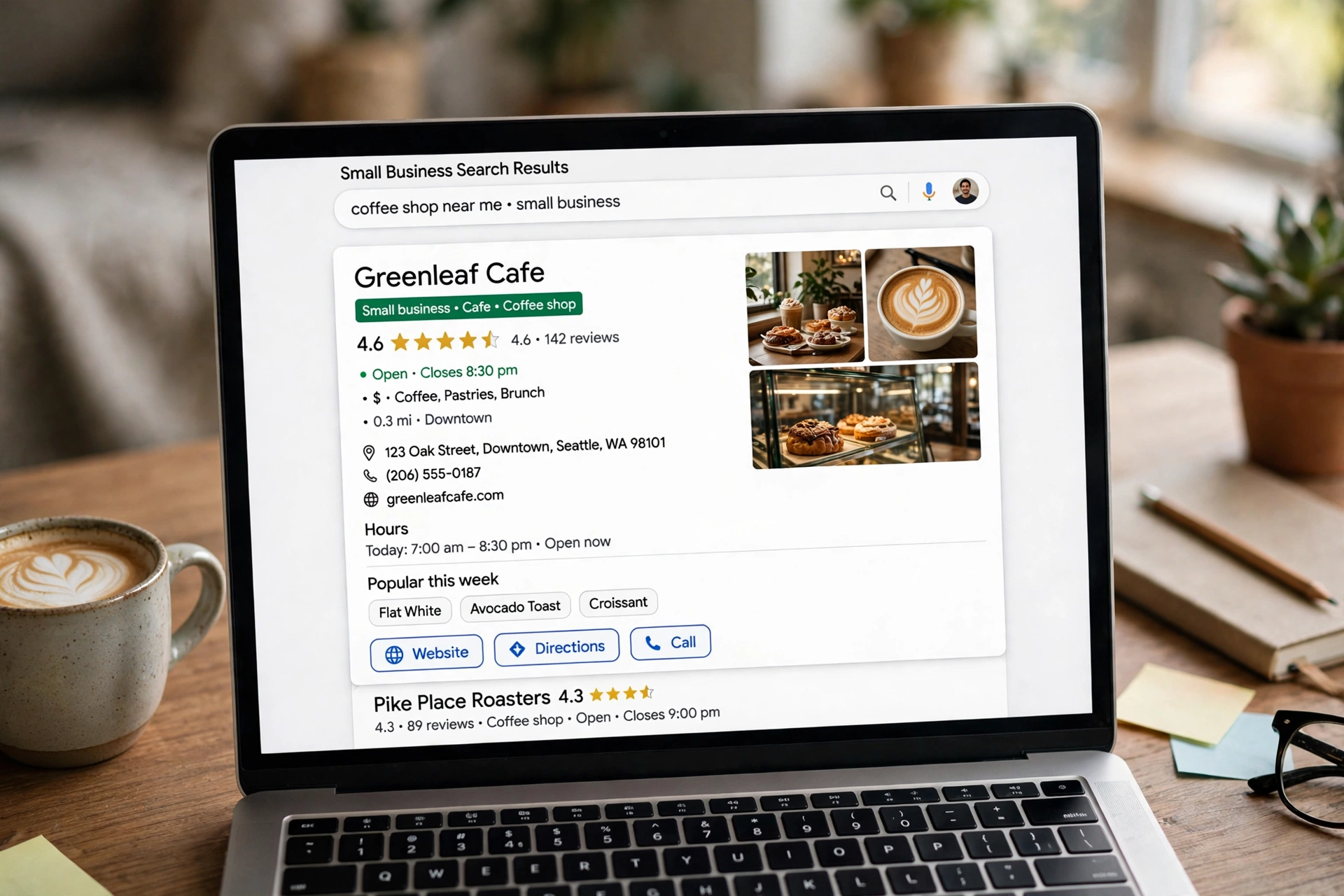
Search results do not all look the same. Some listings are plain blue links with two lines of text. Others show star ratings, prices, opening hours, a photo, or a list of questions and answers right on the results page. Those extra details do not appear by accident. They appear because the website told Google, in a language Google understands, exactly what the page is about. That language is called schema markup.
For a small business, schema is one of the cheapest ways to make a listing stand out. It costs nothing, it needs no new design, and on WordPress it can often be added by a plugin you already use. This guide explains what schema is in plain English, which types a small business actually needs, how to add it without writing code, and how to test it before you publish.
You do not need to learn code to use schema. You need to understand what it does, pick the right types for your pages, fill in accurate details, and check your work with a free testing tool. That is the whole job, and this guide walks through it step by step.
Direct answer
Schema markup is a small piece of code, usually in JSON-LD format, that you add to a page to tell Google exactly what the page is about. It does not directly improve your ranking, but it helps Google understand your content and can make your page eligible for rich results, such as star ratings, prices and opening hours.
What is schema markup in plain English?
Schema markup is a small piece of code, usually JSON-LD, added to a web page to tell search engines exactly what the page is about, and it does not directly boost rankings but helps Google and AI tools understand your content and makes pages eligible for rich results, per digitalmithila. In plain terms, it is a label. Your page already says you are a bakery in Leeds that opens at 8 in the morning. Schema adds a label that says, in a standard format, this is a bakery, this is its address, this is its phone number, these are its opening hours.
Google reads the words on your page to understand the topic. Schema removes the guesswork. Without it, Google has to work out from the text alone whether a number is a price, a phone number, a date or a rating. With it, there is no doubt, because each fact is labelled.
Think of it like a form. When you fill in a form, each box has a label: name, address, phone, opening hours. Schema does the same for a web page. The visitor never sees the code. They only see the result in search, if Google chooses to show it.
It is important to be clear about what schema does not do. Schema is not a ranking factor and does not directly boost your position, but it can make your listing more visually appealing and informative, which improves click-through rates, per schemify.in. In other words, schema does not move you from page three to page one on its own. It helps you win more clicks from the position you already have, because your result looks more useful than the plain listings around it.
What do rich results look like and why do they matter?
A rich result is a search listing with extra details added to it. The most common ones a small business will see are star ratings under a product or service page, opening hours and an address under a local business, a price and stock status under a product, a list of questions and answers under a guide, and breadcrumb links that show where a page sits on the site.
For a shopper, these details answer questions before they click. They can see that a shop is open now, that a product costs a certain amount, or that other customers rated a service highly. For a business, that means the click that does arrive is more likely to be from someone who already knows the basics and is ready to buy or enquire.
Rich results do not appear for every page, and Google decides when to show them. Adding schema makes a page eligible. It does not guarantee a rich result. That distinction matters, because it stops you chasing a result Google has not chosen to show for your type of page. Your job is to label the facts correctly and keep them accurate. Google decides what to display.
A small bakery added Local Business schema and FAQ schema to 12 pages and saw a 19 percent rise in clicks after six weeks, per mywptips.com. That is one small business example, not a promise. It shows the kind of gain that is possible when a listing becomes more useful, and it shows why the work is worth doing even though it takes a little time to appear.
Which types of schema does a small business need?
Most small business websites need only a few types. The mistake is to add every type you can find. Start with the types below, use them where they fit, and leave the rest alone.
| Schema type | Where to use it | What it labels |
|---|---|---|
| Organization or LocalBusiness | Homepage and contact page | Business name, logo, address, phone, opening hours, social profiles |
| Article | Blog posts and guides | Headline, author, date published, main image |
| BreadcrumbList | Every page with a clear path | The trail from homepage to the current page |
| Product | Product pages in a shop | Name, price, availability, rating, description |
| FAQ | Pages with a question and answer section | Questions and their short answers |
| Course | Pages that sell a course or training | Course name, provider, description, price |
Most small business websites need Organization or LocalBusiness, Article, BreadcrumbList and, where relevant, Course or Product schema, per digitalmithila. That is the core set. A local shop needs LocalBusiness first. A blog needs Article and BreadcrumbList. A shop needs Product as well. A business that runs training needs Course.
LocalBusiness should include name, logo, address, phone, opening hours and social profiles in sameAs, per digitalmithila. The sameAs field is a list of your profiles elsewhere on the web, such as Facebook, Instagram and LinkedIn. It helps Google connect your website with your profiles and confirm that they all belong to the same business. Fill in only profiles you actually use, and keep the details identical everywhere.
Article schema is useful for every guide on your site. It labels the headline, the author and the date the post was published. It helps Google understand that a page is an article, not a service page or a product page. BreadcrumbList is useful on every page, because it shows the path from the homepage to the current page, such as Home, then Blog, then the post title. That path can appear in search results instead of a long web address, which is easier for a searcher to read.
How do you add schema with Yoast or Rank Math?
On WordPress, the easiest route is a plugin you already use. Yoast SEO, Rank Math and similar plugins add basic Organization, Article and Breadcrumb schema automatically, per digitalmithila. If you use Yoast, that work is already done for most pages, and you only need to check the settings and fill in the missing details.
Start in the plugin settings. In Yoast, open SEO, then Settings, then Site features or the site representation section, and check the organisation details. Add your business name, your logo, and your social profiles. Then check that your homepage is set as the organisation page. If those details are blank, the schema will be blank too, or it will use the site name and nothing else.
Next, check a blog post. Open a post, scroll to the Yoast box, and look at the schema settings. Yoast will normally set the post type to Article by default, which is correct for a guide. If a post is a service page or a product page, check that the type still fits. A service page labelled as an Article will confuse Google, not help it.
Rank Math works in a similar way. It adds Organisation, Article and Breadcrumb schema by default, and it lets you pick a schema type per post from the editor. Choose the type that matches the page, fill in the fields it asks for, and save the post. Do not add a second schema plugin on top of Yoast or Rank Math. Two plugins adding the same schema will create duplicate code, and that causes errors rather than extra benefit.
If you want a fuller technical checklist before you start, read our technical SEO checklist for WordPress beginners. Schema is one item on that list, and the checklist covers the other basics, such as crawl access, speed and mobile use, that need to be right before rich results matter.
How do you add LocalBusiness schema by hand?
The automatic schema from Yoast or Rank Math covers the basics, but it does not always cover a full LocalBusiness listing with opening hours, address and social profiles. For that, you can add a small code snippet yourself, without editing theme files.
The safe way to do this is with a code snippet plugin, such as WPCode. Do not edit your theme files directly, because a theme update will wipe the change. Add a new snippet, set it to run in the page header or footer on the homepage only, and paste in a JSON-LD block for LocalBusiness with your real details: name, address, phone, opening hours, and your social profiles in sameAs.
Keep the details identical to what is on your Google Business Profile and your contact page. If your opening hours say 9 to 5 on the website and 8 to 6 on Google, Google will trust neither. Accuracy matters more than completeness. A short, correct listing beats a long listing with two wrong facts in it.
After you add the snippet, test it before you publish the change to the live site, or test it straight after and fix any error the same day. Do not add LocalBusiness schema to every page. Add it to the homepage and the contact page, where the business details belong. Adding the same business schema to a blog post about a different topic does not help, and it can look like you are trying to label a page as something it is not.
If you run a shop, Product schema is the next step. WooCommerce and many shop plugins add basic Product schema automatically. Check one product page with the testing tool below, and only add extra fields by hand if the automatic schema is missing a price, a stock status or a rating that you know is correct.
What should you not add to schema?
The fastest way to lose rich results is to add schema that does not match the page. Google checks whether the facts in the code match the facts a visitor can see. If they do not match, Google can ignore the schema, or remove rich results from the site.
Do not add review schema unless the page shows real reviews from real customers, with the rating visible on the page. Fake reviews, reviews copied from another site, or a five star rating with no reviews shown will all be treated as misleading. Do not add a price to a page that does not show a price. Do not add opening hours to a page that has no opening hours on it. Do not add FAQ schema to a page that has no questions and answers in the visible text.
Do not add schema for a business address that is not your real address, and do not add a phone number that is not answered. These sound obvious, but they are common mistakes when a business copies a code example from another site and forgets to change the details.
Do not add every schema type to every page. A blog post does not need Product schema. A product page does not need Course schema. Pick the type that matches the page, fill it in accurately, and leave the rest out. Less schema, done well, beats a long list of half filled types.
How do you test schema and fix errors?
Testing is not optional. Schema that looks right can still have a small error, such as a missing comma, a wrong date format or a field with the wrong type of value. The testing tools will catch those errors in seconds.
Test with Google’s Rich Results Test and the Schema Markup Validator at validator.schema.org, per digitalmithila. Open the Rich Results Test, enter the address of a page, and run the test. It will show which rich results the page is eligible for, and it will list errors and warnings. Fix the errors first. Warnings are less serious, but they are worth fixing when you can, because they show fields Google expected and did not find.
Use the Schema Markup Validator for a second check. It reads the code and reports any problems with the structure, even if the page is not eligible for a rich result. It is useful when the Rich Results Test says a page is not eligible and you want to know whether the code itself is valid.
| Problem the tool reports | What it usually means | What to do |
|---|---|---|
| Missing required field | A field Google needs is blank | Fill in the missing fact on the page and in the schema |
| Invalid value | A date, price or number is in the wrong format | Use the format the tool asks for, such as a full date |
| Schema does not match page | The code says one thing, the page says another | Change the code to match the visible page, not the other way round |
| Duplicate schema | Two plugins add the same type | Remove one plugin or switch off schema in one of them |
| No rich results detected | The code is valid but the page type has no rich result | Check the page type is right, then leave it; not every page gets one |
After you fix an error, test again. Keep testing until the errors are gone. Then check the page in Google Search Console. Open the enhancements section and look for the schema report for your type. It will show how many pages are valid, how many have errors, and which pages Google has actually shown rich results for. That report takes time to update, so check it a few days after a fix, not the same hour.
To see whether the work is paying off, learn how to measure SEO results in Google Search Console. Look at clicks and click through rate for the pages you changed, and compare the weeks before and after the fix. A rise in click through rate, with position roughly the same, is a good sign that the richer listing is winning more clicks.
How long does it take for rich results to appear?
Rich results do not appear the day you add schema. Google has to crawl the page again, read the new code, and decide whether to show the rich result. That can take days, and for a small site with few crawls it can take weeks. The bakery example above took six weeks to show a clear rise in clicks, and that is a realistic timescale to keep in mind.
Do not keep changing the schema while you wait. If the testing tool says the code is valid, leave it alone and let Google crawl the page. Changing it every day will only delay the result, because each change needs a new crawl to be seen.
If a page has been valid for a month and still shows no rich result, check three things. First, is the page indexed at all? A page Google has not indexed cannot show a rich result. Second, does the page type actually have a rich result in Google? Not every type does. Third, does the page match the search intent for its keyphrase? A page that ranks on page five will rarely show a rich result, because Google shows rich results mainly for pages it already ranks well. In that case the fix is better content and better ranking, not more schema.
Frequently asked questions
What is schema markup in simple terms?
It is a small piece of code that labels facts on a page, such as a business address, a price or a rating, so Google can understand the page and show richer details in search results.
Does schema markup improve rankings directly?
No. Schema is not a ranking factor and does not directly boost your position, per schemify.in. It can make your listing more useful and improve click through rates, which is where the benefit comes from.
Do I need to write code to add schema on WordPress?
Not for the basics. Yoast SEO, Rank Math and similar plugins add basic Organization, Article and Breadcrumb schema automatically, per digitalmithila. You only need code for extra LocalBusiness details, and a snippet plugin makes that safe.
Which schema types does a small business need most?
Most small business websites need Organization or LocalBusiness, Article, BreadcrumbList and, where relevant, Course or Product schema, per digitalmithila. Start with those and add nothing else until they are correct.
How do I test schema markup?
Use Google’s Rich Results Test and the Schema Markup Validator at validator.schema.org, per digitalmithila. Fix the errors first, then check the enhancements report in Search Console a few days later.
Conclusion
Schema markup is a label, not a trick. It tells Google what a page is about, in a format Google can read without guessing, and it makes a page eligible for richer results in search. Start with the types your business actually needs, LocalBusiness, Article, BreadcrumbList and Product or Course where they fit, fill them in with accurate details, add them with a plugin where you can, and test every page before you move on. It will not lift a weak page to the top of Google on its own, but it will help a good page win more clicks from the position it already has, and for a small business that is a gain worth having.