
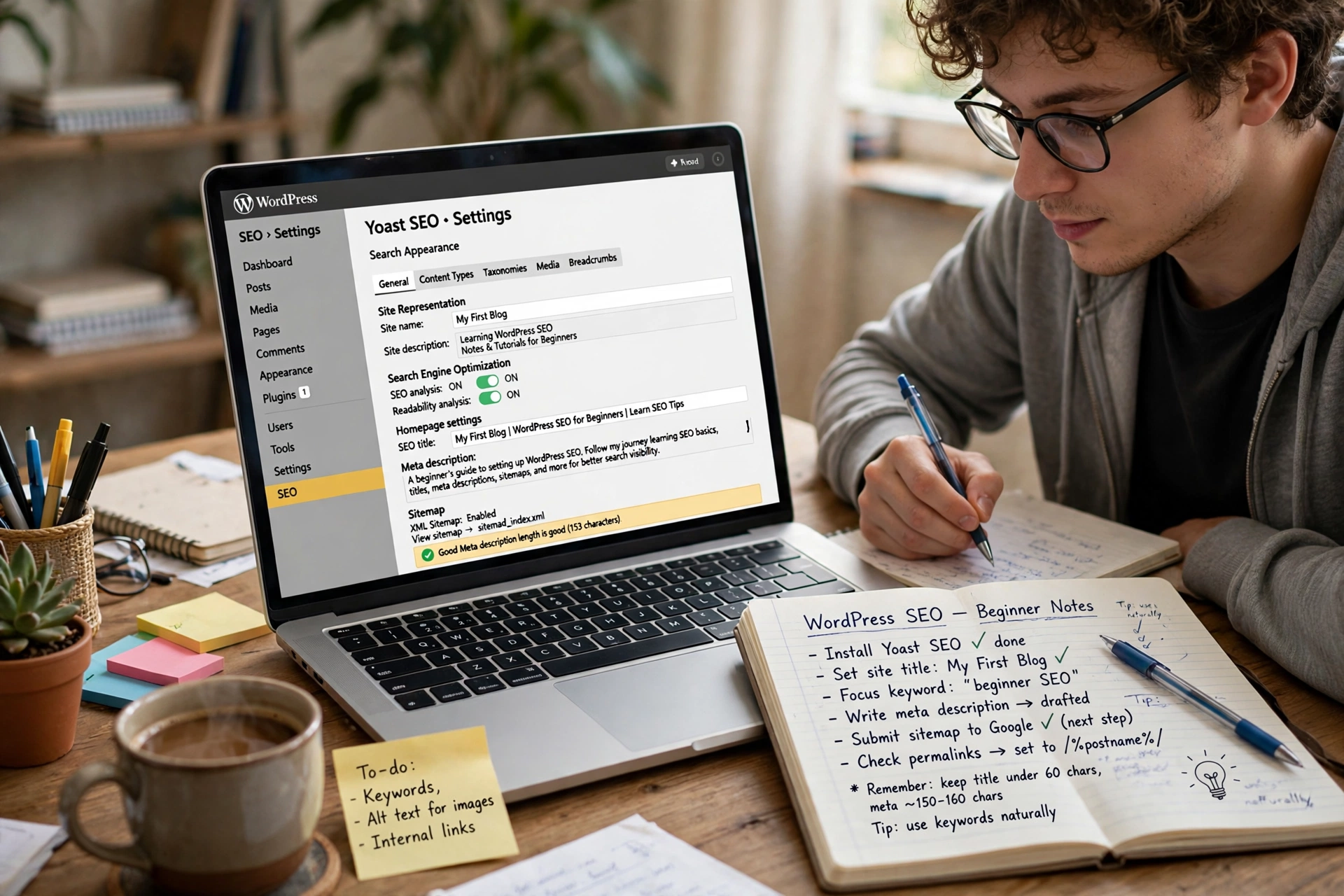
WordPress is one of the easiest platforms to build a website on, and it is also one of the best for SEO, but only if you set it up properly. Out of the box, WordPress gives you a working site. It does not give you optimised titles, a sitemap, or any way to tell Google what each page is about. That work is yours, and it is simpler than most beginners expect.
This guide walks through the setup in order. Each step takes a few minutes. By the end, your site will have the basics that most small business sites never get right, and you will know how to write a post that actually has a chance of ranking.
Direct answer
SEO for WordPress beginners means setting up your site so Google can find, understand and rank your pages. Install the Yoast SEO plugin, set permalinks to Post name, give every page one focus keyphrase with a title and meta description, let Yoast build your sitemap, and connect Google Search Console. Then write content that answers what your customers search for.
What is WordPress SEO and why does it matter?
SEO, short for search engine optimisation, is the work of helping your pages appear in Google when people search for what you offer. WordPress is a good starting point because it is built with clean code that search engines can read easily, and because its plugin system lets you add almost any SEO feature without touching code.
The opportunity is large. The wppioneer guide notes that Google processes over 8 billion searches per day. A share of those searches is about your trade, in your area. A small business does not need to rank for everything. It needs to rank for the searches its own customers make, and that is a realistic goal for a new site that follows the steps below.
What do you need before you start?
You need three things: a WordPress site you can log into, a few minutes for each step, and one page or post you care about ranking. Do the steps in order, because each one builds on the last. Do not skip the boring settings at the start. They decide whether Google can find your site at all, and no amount of clever writing fixes a site Google cannot crawl.
How do you set up WordPress SEO step by step?
Work through these ten steps in order. The first five are one off setup jobs. The rest are habits you repeat for every new page.
| Step | What to do | Time it takes |
|---|---|---|
| 1 | Check search engine visibility is on | 1 minute |
| 2 | Set permalinks to Post name | 2 minutes |
| 3 | Install Yoast SEO and run the setup wizard | 10 minutes |
| 4 | Make sure the site uses HTTPS | 5 minutes |
| 5 | Pick a focus keyphrase for each page | 5 minutes per page |
| 6 | Write an SEO title and meta description | 10 minutes per page |
| 7 | Let Yoast build and check your XML sitemap | 2 minutes |
| 8 | Connect Google Search Console | 10 minutes |
| 9 | Optimise images before you upload them | A few minutes per image |
| 10 | Link your pages together | A few minutes per post |
Step 1: How do you make sure search engines can see your site?
Go to Settings, then Reading, in your WordPress dashboard. Look for the box labelled “Discourage search engines from indexing this site”. It must be unticked. If it is ticked, Google will ignore your site completely, and nothing else you do matters. This box is sometimes left ticked after a site is built, so check it first even if your site has been live for months.
Step 2: Why should permalinks be set to Post name?
A permalink is the web address of a page. WordPress can create ugly addresses such as yoursite.co.uk/?p=47. Nobody can read those, and Google prefers clear ones. Go to Settings, then Permalinks, and choose “Post name”. Your pages will then have addresses such as yoursite.co.uk/wordpress-seo-guide/, which are readable and contain useful words.
If your site is already live with the old address style, do not change this setting without setting up 301 redirects for every existing page. A changed address without a redirect loses the value the old page had built up.
Step 3: Which SEO plugin should you install?
WordPress has no built in SEO controls, so you need a plugin. The three most popular options are Yoast SEO, Rank Math and All in One SEO. All three are free at the basic level and cover the same core jobs: titles, meta descriptions, sitemaps and basic analysis.
For an absolute beginner, Yoast SEO is the simplest choice. The authenticstyle guide notes that Yoast SEO has more than 10 million active installs on WordPress.org, and the free version covers everything in this guide. Install it from Plugins, then Add New Plugin, and run the setup wizard when it asks. The wizard sets sensible defaults and creates your sitemap. Only ever run one SEO plugin at a time. Two of them will fight over your titles and make things worse.
| Plugin | Best for | Free version | Difficulty |
|---|---|---|---|
| Yoast SEO | Absolute beginners, guided setup | Covers the basics well | Beginner friendly |
| Rank Math | All round value, more features free | Very generous free tier | Beginner to advanced |
| All in One SEO | Simple setup, long history | Good basic features | Beginner friendly |
Step 4: Why does HTTPS matter?
HTTPS is the secure version of your site address, shown by the padlock in the browser. Google has treated HTTPS as a ranking signal since 2014, according to the sitemile guide, and visitors trust a site with a padlock far more than one without it. Most hosts now offer a free SSL certificate. If your site still loads on http, ask your host to switch it on and to redirect all old http addresses to https.
Step 5: How do you choose a focus keyphrase for a page?
A focus keyphrase is the main search phrase a page is trying to rank for. Each page should have one. A page about boiler servicing in Leeds might target “boiler service Leeds”. A page about wedding photography might target “wedding photographer in York”.
Pick phrases your customers actually type. Short phrases have more searches but stronger competition. Longer phrases, often called long tail keywords, have fewer searches but are easier to rank for and the searcher is usually closer to buying. A new site should start with longer, more specific phrases. Type the keyphrase into the Yoast box on the page, and Yoast will check whether you have used it in the title, the headings and the text.
Step 6: How do you write an SEO title and a meta description?
The SEO title is the blue link people see in Google. Keep it under about 60 characters, put your keyphrase near the front, and make a clear promise about what the page delivers. “Boiler Service Leeds, Fixed Price, Book Online” tells the searcher far more than “Welcome to our website”.
The meta description is the short paragraph under the title in Google. It does not directly raise your ranking, but it decides whether people click. Write about 150 to 160 characters that restate the problem in the searcher’s words and name the answer your page gives. Every page needs its own title and description. Duplicates are one of the most common beginner mistakes.
Step 7: What is an XML sitemap and why do you need one?
An XML sitemap is a file that lists every page on your site for Google. Yoast creates it automatically once the plugin is installed. You can find it at yoursite.co.uk/sitemap_index.xml. Check that it loads and that it lists your pages. If a page is missing from the sitemap, Google may never find it.
Step 8: How do you connect Google Search Console?
Google Search Console is a free tool from Google that shows how your site performs in search. It is the single most useful free SEO tool a beginner can have. It shows which queries bring people to your site, which pages are indexed, and which errors Google found.
To connect it, create an account at Google Search Console, add your site, and verify it. Yoast can help with verification during its setup wizard. Once connected, submit your sitemap inside Search Console. That tells Google where your pages are. Check Search Console at least once a month after that, because it is where ranking problems show up first.
Step 9: How do you optimise images?
Images are usually the heaviest files on a page, and a slow page ranks worse. Before you upload a photo, resize it to the width it will actually be shown at, usually 1,200 to 1,600 pixels, and compress it. Then give the file a descriptive name with hyphens, such as “boiler-service-leeds.jpg”, and write one sentence of alt text describing what the image shows. Alt text also helps visitors who use screen readers.
Read our guide to optimise images for SEO for the full workflow, including formats, compression tools and how to check your heaviest images.
Step 10: How do you link your pages together?
Internal links are links from one page on your site to another. They help Google find your pages and understand how they relate to each other. They also help visitors move from a guide to a service page, which is where enquiries come from.
Every new post should link to at least one older related page, and older pages should link forward to new posts where it makes sense. Use descriptive anchor text that says what the reader will find, not “click here”. Read our guide to internal linking for SEO to see how those links build a structure Google can follow.
How do you write your first optimised post?
Pick one keyphrase, then write for the person who typed it. Start with a direct answer to their question in the first paragraph. Then use question headings to break the rest into sections. Answer each question plainly and stop when the question is answered. Add one or two tables or lists where they make the facts easier to scan. Finish with a short FAQ that answers the follow on questions people ask about the same topic.
Do not stuff the keyphrase into every sentence. Use it in the title, once in the first paragraph, in one or two headings where it fits naturally, and then write normally. A page written for a real person will use the keyphrase naturally. A page written for Google will read badly, and readers will leave.
How long does WordPress SEO take to work?
SEO is slow. The sitemile guide notes that most new sites take 3 to 6 months to see significant organic traffic growth. That is normal. Google needs time to find your pages, to test them against other results, and to trust a new site.
Do not judge a page after a week. Check Search Console monthly instead. Look for pages that appear on page two or three of Google, around positions 11 to 30. Those are your easiest wins. A small improvement to the title or the opening answer can move one of them onto page one.
FAQ
Do I need an SEO plugin for WordPress?
Yes. WordPress has no built in tools for titles, meta descriptions or sitemaps. A plugin such as Yoast SEO adds all of them, and the free version covers the basics in this guide.
Is Yoast SEO free?
Yes, the free version covers titles, meta descriptions, sitemaps and keyphrase checks. There is a paid version with extra features, but a beginner does not need it to start.
How long should an SEO title be?
About 50 to 60 characters. Google cuts off longer titles in search results, so put the keyphrase and the main benefit in the first 50 characters.
What is a focus keyphrase?
It is the main search phrase a page is trying to rank for. Each page should have one, used in the title, the headings and the text where it fits naturally.
How often should I check Google Search Console?
At least once a month. It shows which queries bring visits, which pages are indexed, and which errors need fixing. It is free and it is the best source of real data about your own site.
Conclusion
WordPress SEO for beginners comes down to ten steps: make the site visible, set clean permalinks, install Yoast and run its wizard, use HTTPS, pick one keyphrase per page, write clear titles and descriptions, check the sitemap, connect Search Console, optimise your images, and link your pages together. None of these steps needs a developer. Do the setup once, repeat the page habits for every new post, and give it three to six months. That is how a small business site starts to win searches it never appeared in before.